Scout Companion
Keep your agents
in the notch.
Scout for Mac hangs a board of your live sessions below the notch. Find the agent that is running, answer its question in place, and put it on your desktop, without leaving the app in front.
- Fix flaky web testsyouFix the flaky web tests and run the suite before opening a PR.descartesFixed two timing races in arrivals.test.ts. Ready to run bun test packages/web?
- youKeep the notch hidden on full-screen transitions.chopinImplemented on main. Full-screen space transitions now keep the panel tucked.
- youAudit how work routes handle disconnected nodes.humeReading runtime-http-router.ts and tracing timeout propagation across /api/work.
- youSplit the monolithic web router into domain route files.senecaMoved 12 route files into server/routes; updating TypeScript path imports now.
// Route each ask back to the notch row
export function answer(id: string, allow: boolean) {
  return runtime.reply(id, { allow });
}
01 · The notch
Quiet at rest. Ready when an agent asks.
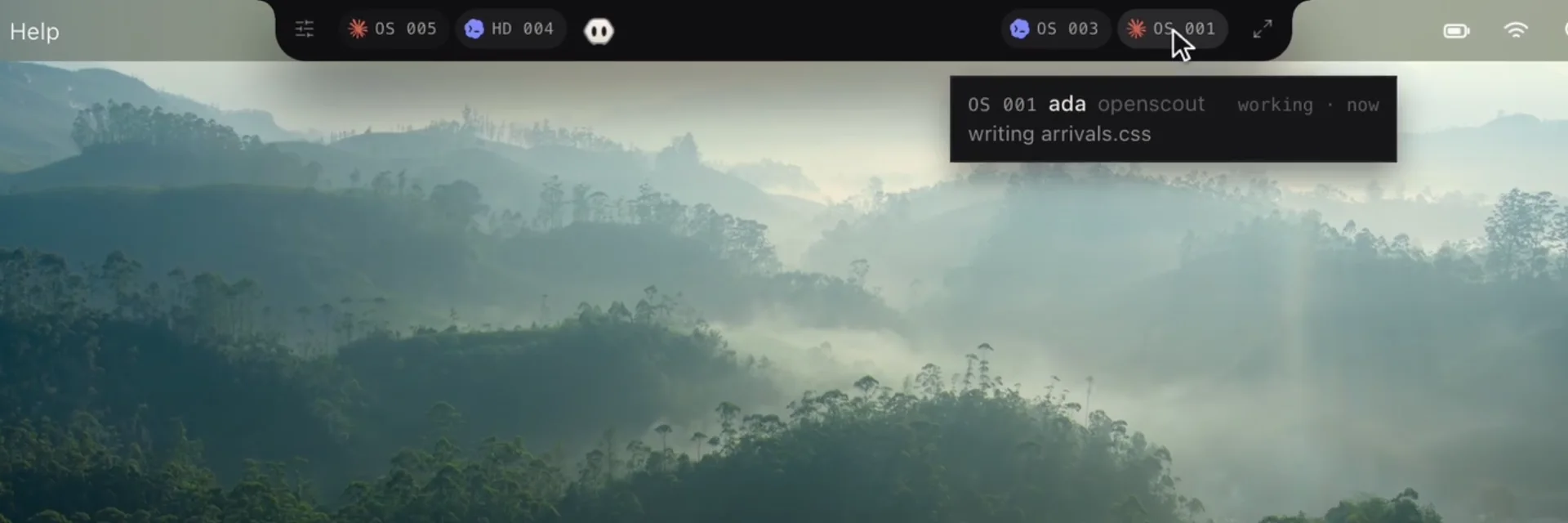
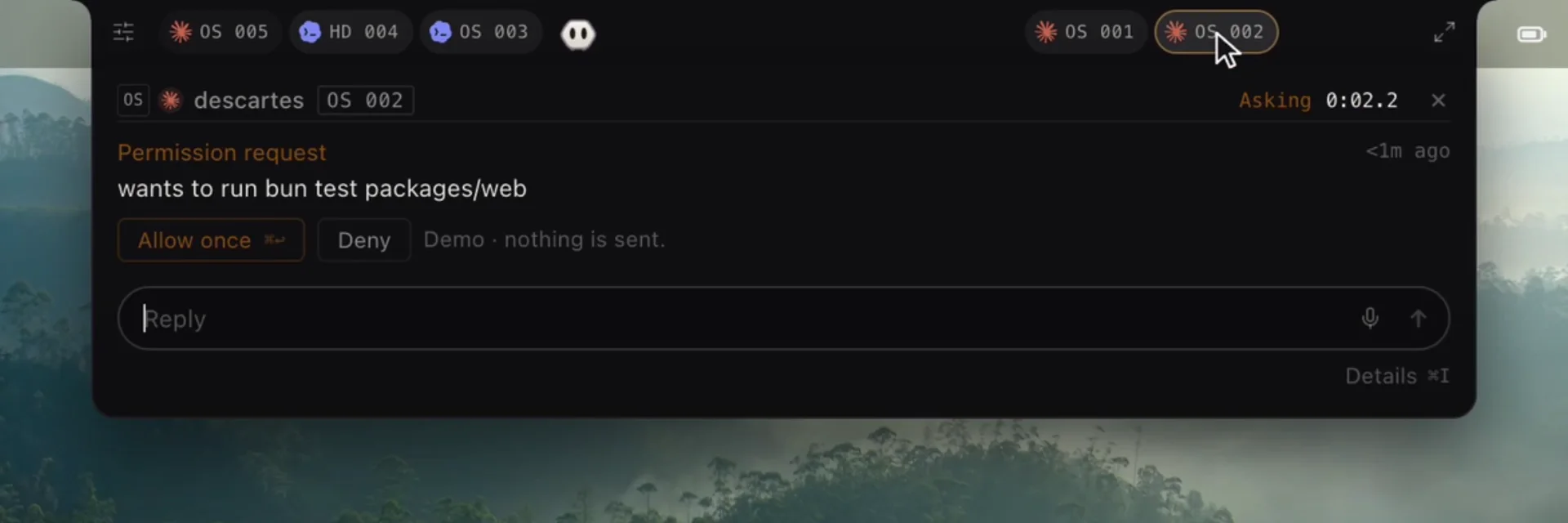
Folded, Companion sits in a thin strip either side of the camera housing. When a local session pauses for approval or finishes a turn, open the board from any app and answer right where it came from.
- Folded strip
- Toggle Companion from any app with Hyper+S, or push the cursor against the screen edge to bring back a hidden notch.
- Answer in place
- Respond to permission gates, questions, and finished turns right inside the notch row without hunting for the terminal tab.
- Never steals focus
- Companion runs in a non-activating overlay panel, so checking an agent never pulls focus out of your editor or browser.
02 · On your desktop
Pull an agent onto any window, or float the board anywhere.
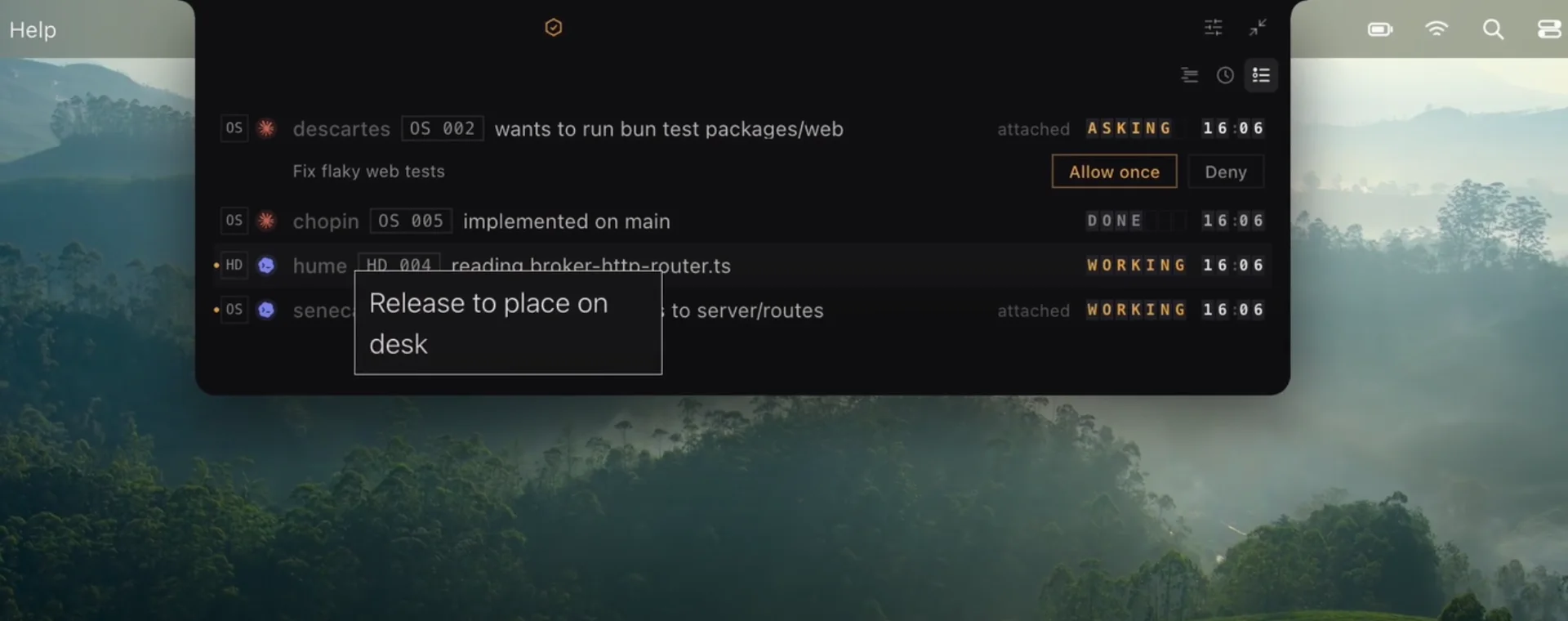
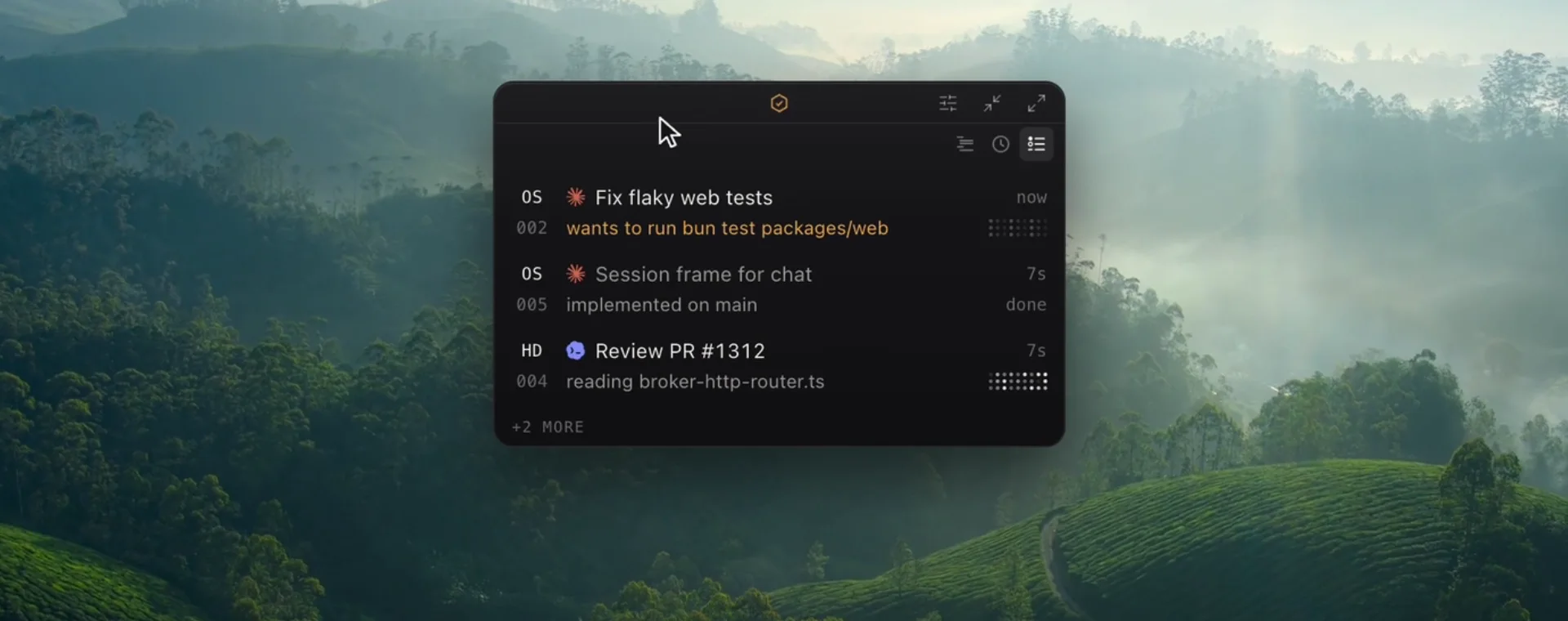
Drag a session row off the board to keep that agent perched on top of the editor or browser window you are working in, or detach the whole board and place it on any edge or corner.
- Rides along with windows
- Attached agents move with their host window, hide when you switch Spaces, and ghost out for click-through whenever another window covers them.
- Hide placed agents
- Dismiss or summon your placed desktop characters in one shortcut; any agent waiting on your answer stays visible.
- No intrusive permissions
- Window tracking, edge triggers, and global hotkeys work without Screen Recording or Accessibility prompts.
03 · Full session
One click into the full transcript and diff.
Companion and Scout Workspace share the same local session record. Open any row with ⌘O or inspect Details with ⌘I whenever you need the full tool trace, changed files, or conversation history.
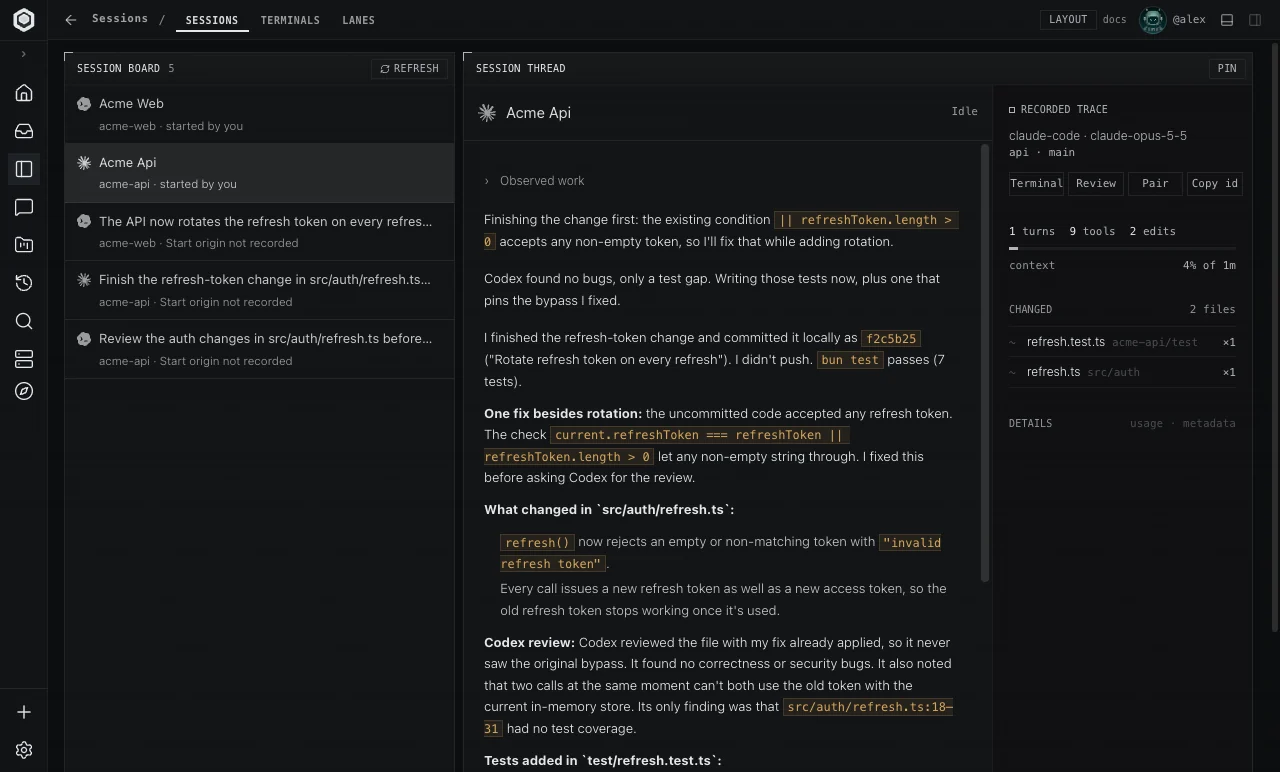
- Observed & routed sessions
- Reads running Claude Code, Codex, Antigravity, Cursor, and other local harness sessions alongside asks routed through Scout.
- One durable record
- Every approval, reply, and turn summary stays stored on your machine so nothing disappears when you close a terminal window.
04 · Install
Scout for Mac 0.6.1
Install Scout. Companion opens first.
Companion and Workspace share one app. Start with the board and open Workspace when you want the whole session.
Already use Scout? Your saved startup choice stays. Change it any time in Settings under On launch.
Read the companion docs- Download the app.Download Scout 0.6.1 for Mac
- Open the disk image and drag Scout to Applications.
- Open Scout. If it asks to install local tools, choose “Install and open Companion.” The board opens at the top of your screen.
- Select your running agent, or choose “Start a session.” If Scout can’t find a coding agent, the board shows how to connect one.
Requires macOS 26.0.0. No Screen Recording or Accessibility permission.